
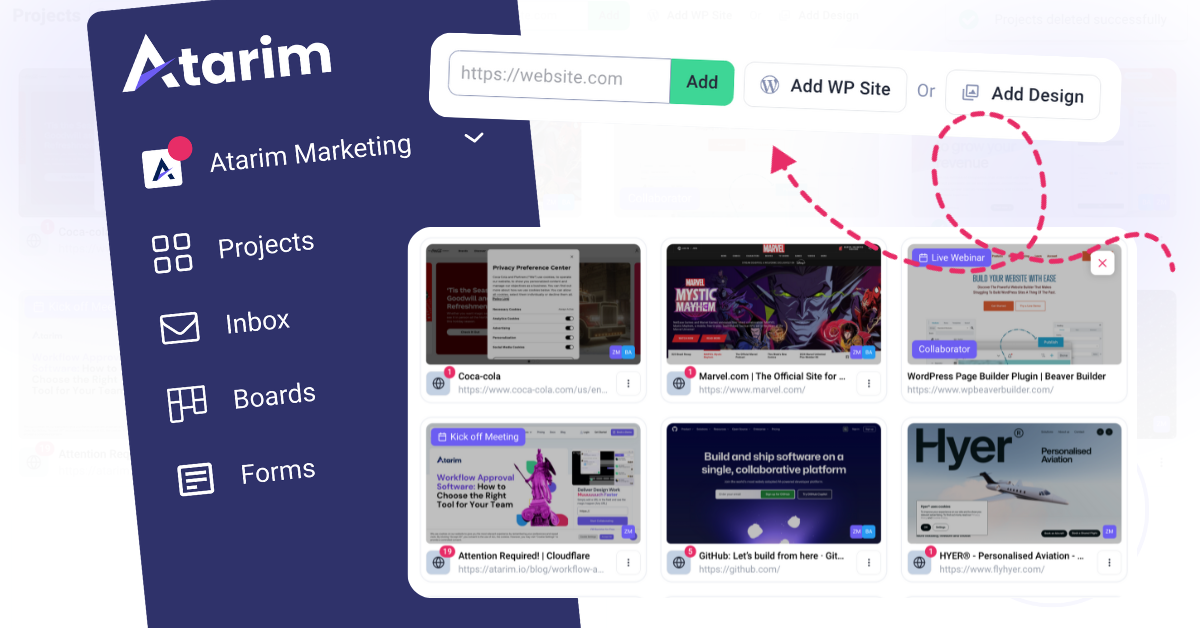
Method 1: Adding a URL to Create a New Project
This quick method allows you to add any website URL, enabling collaboration within seconds.
Use this method for projects focused on live websites where you need immediate feedback.
Instructions:
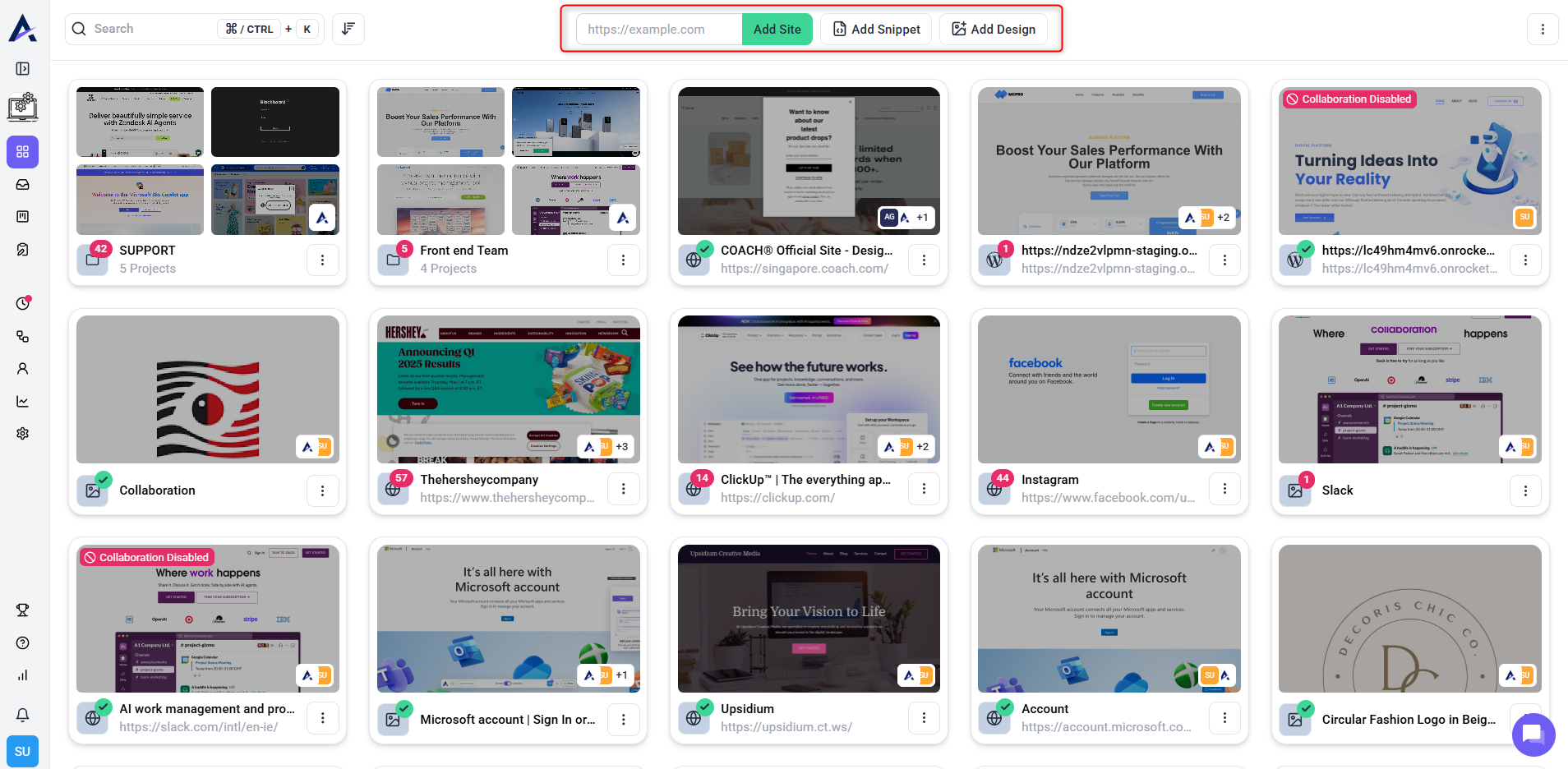
- Navigate to the Projects screen.
- In the top bar, enter the URL of the website you want to collaborate on.
- Click “Add Site” to generate a shareable collaboration link instantly.
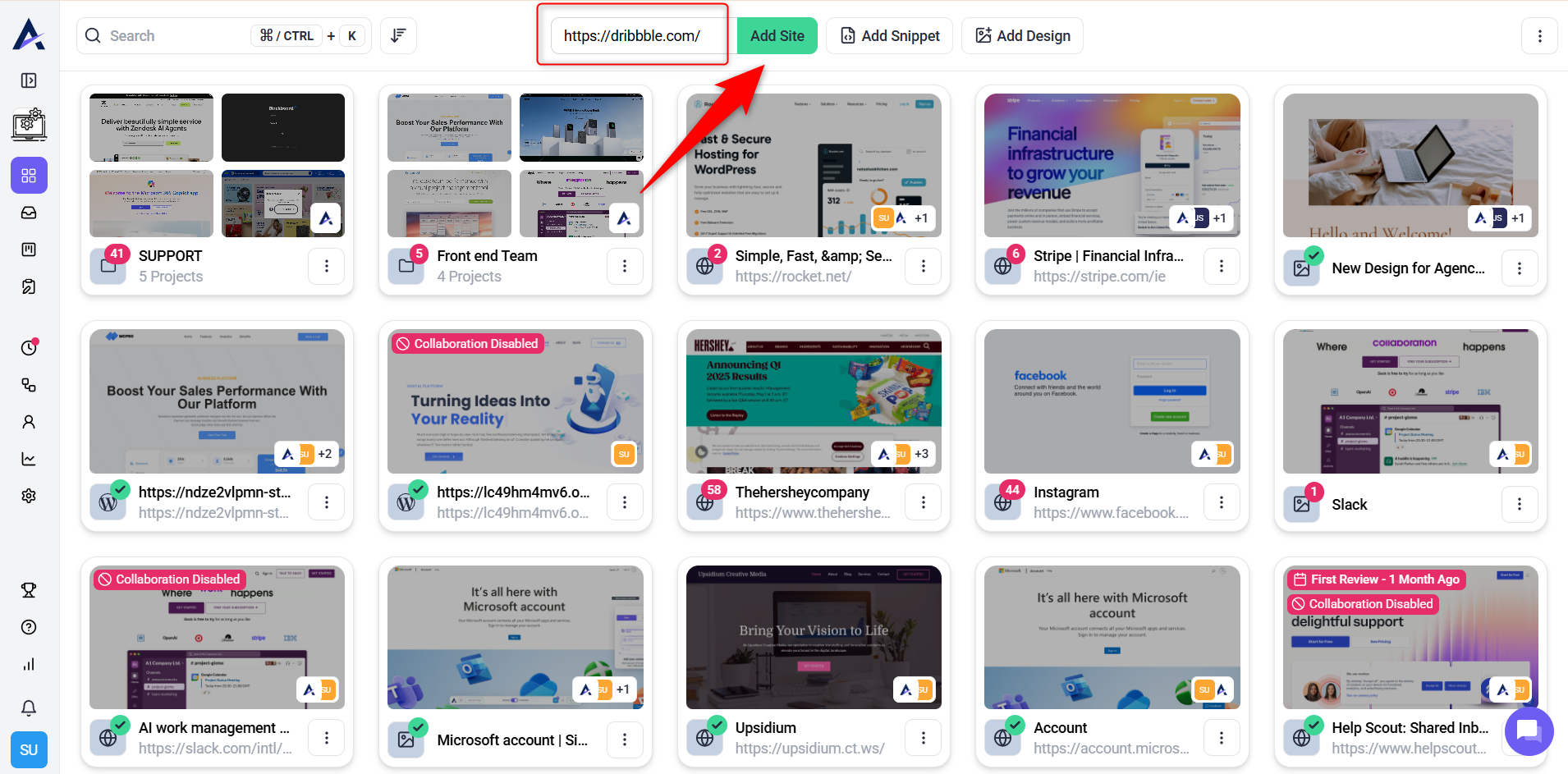
Note: The website must have an SSL certificate (HTTPS) to be added here. Websites using HTTP cannot be added for collaboration.
Method 2: Uploading Designs
This method is ideal for design collaboration. Upload multiple design files into a single project and manage feedback easily with version control.
Instructions:
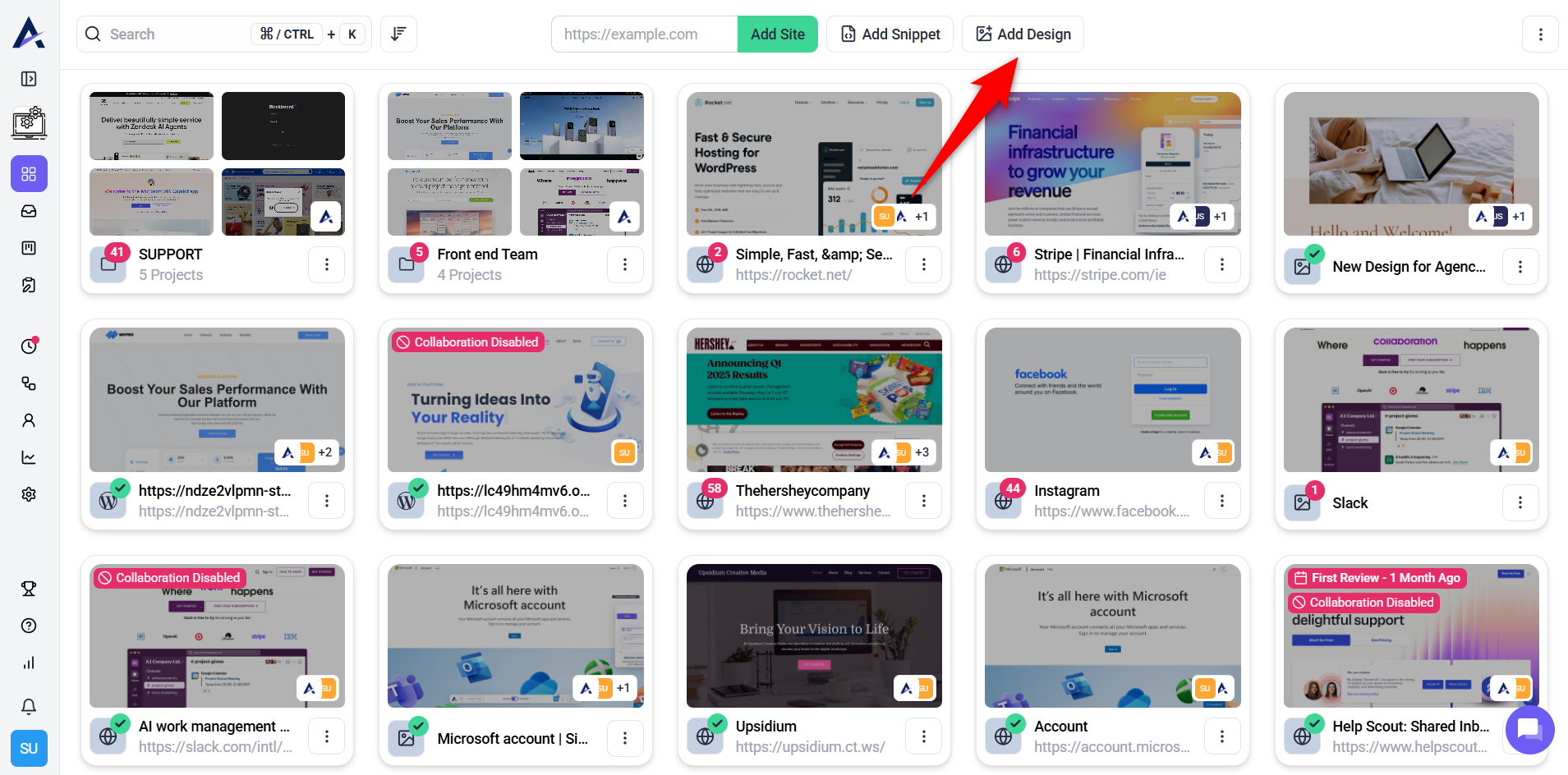
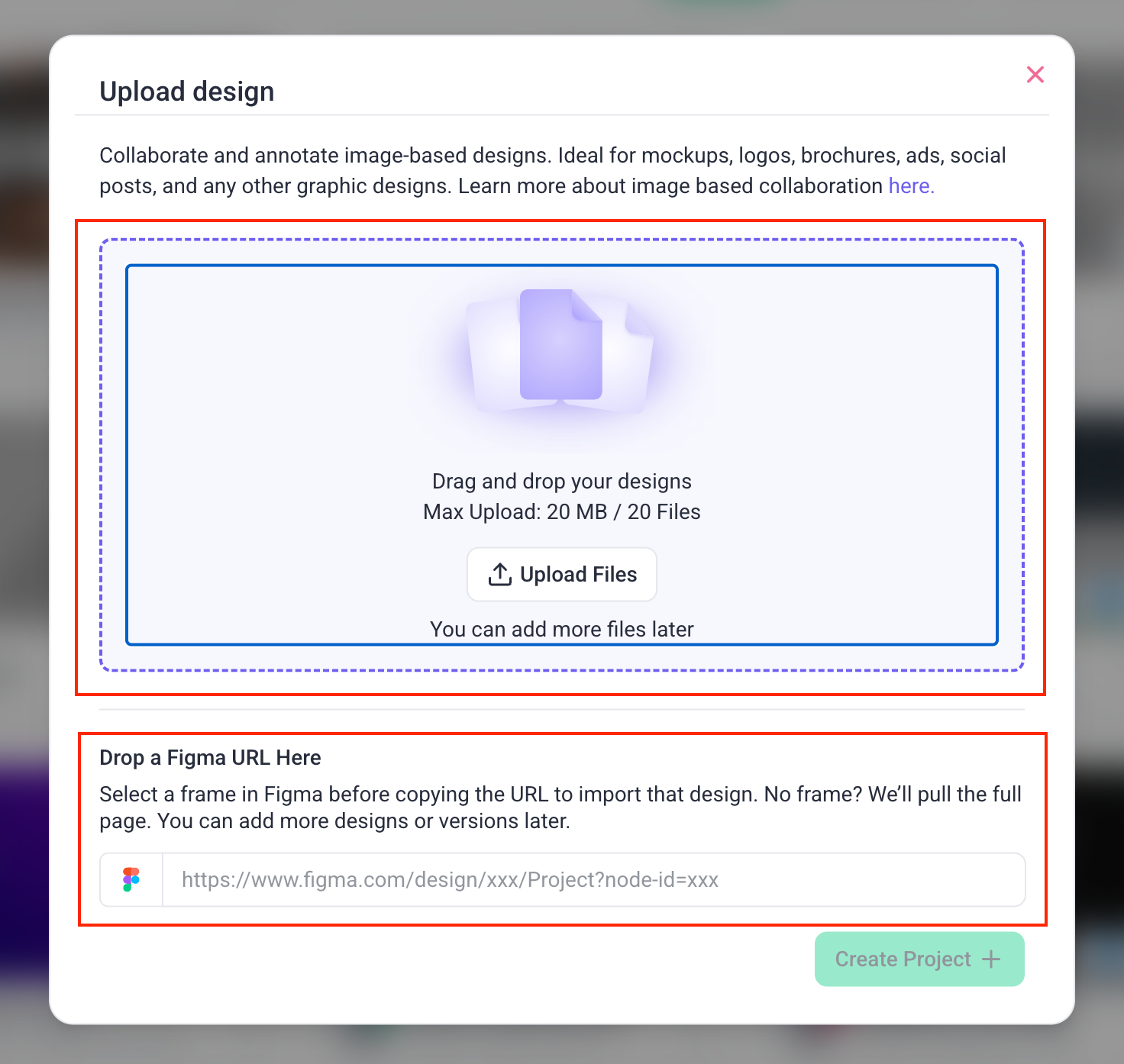
- From the Projects screen, click on “Add Design”.
- Select the design files you want to upload.
- Organize multiple designs, mockups or variations within singular projects.
- Or paste your Figma URL to import a design directly.
Note: Currently, users can only collaborate on image files. The supported file types are JPG and PNG.
Recommendation: Use version control to manage multiple iterations of the same design, ensuring all feedback is applied to the correct version.
Method 3: Installing the Atarim Plugin or Script
For websites or applications requiring deeper integration, install the Atarim script or WordPress plugin to gain more control over your projects.
WordPress Plugin
Tip: Best for WordPress sites, staging environments, maintenance mode, and backend feedback.
Option 1: Install via Site URL
Install the Atarim plugin directly on your WordPress site by connecting via your site URL. This method does not require downloading or manually uploading any plugin files. Learn More About The Plugin Settings.
Instructions:
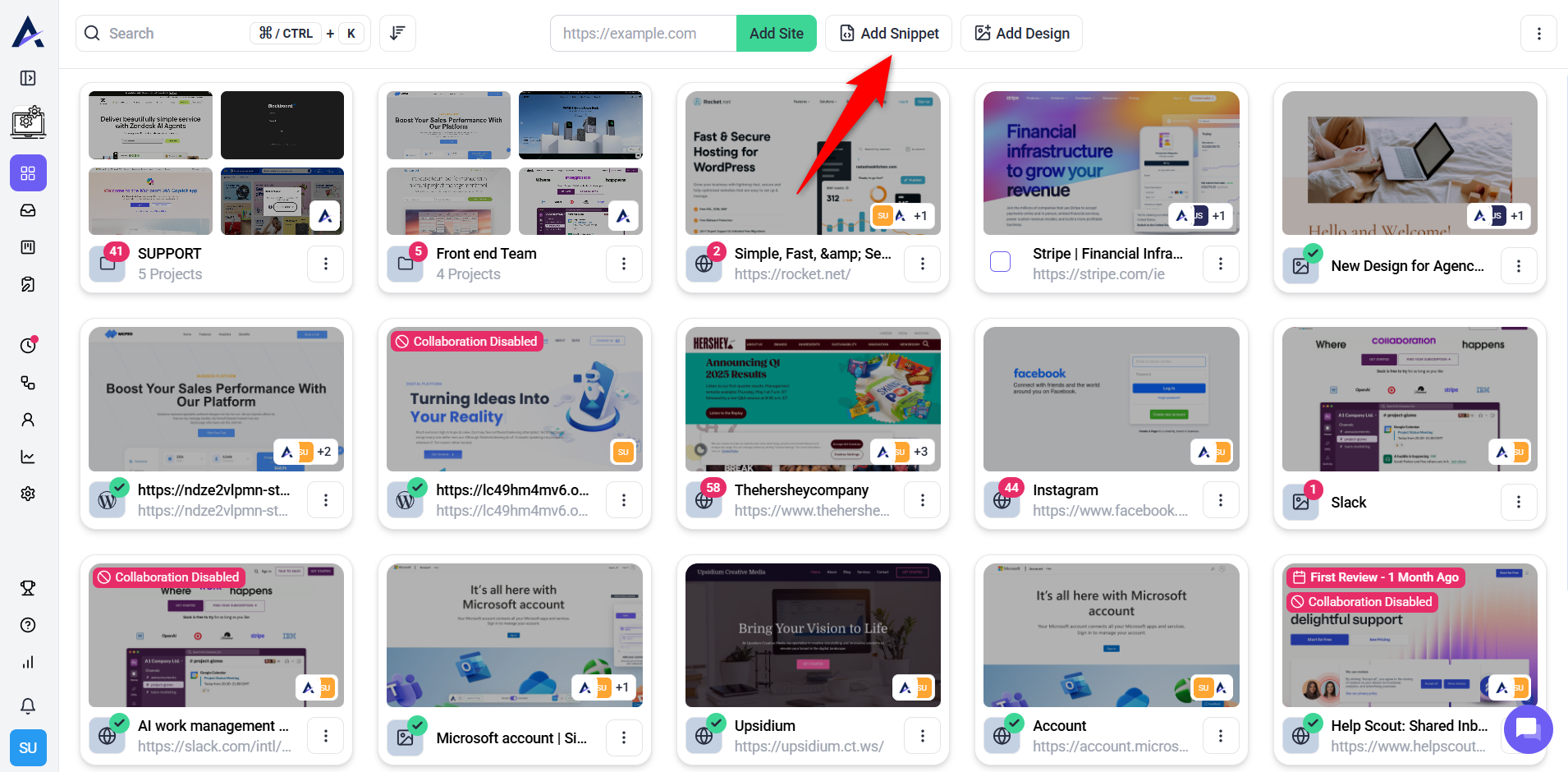
- Log in to your Atarim workspace and navigate to Projects if you’re not already there.
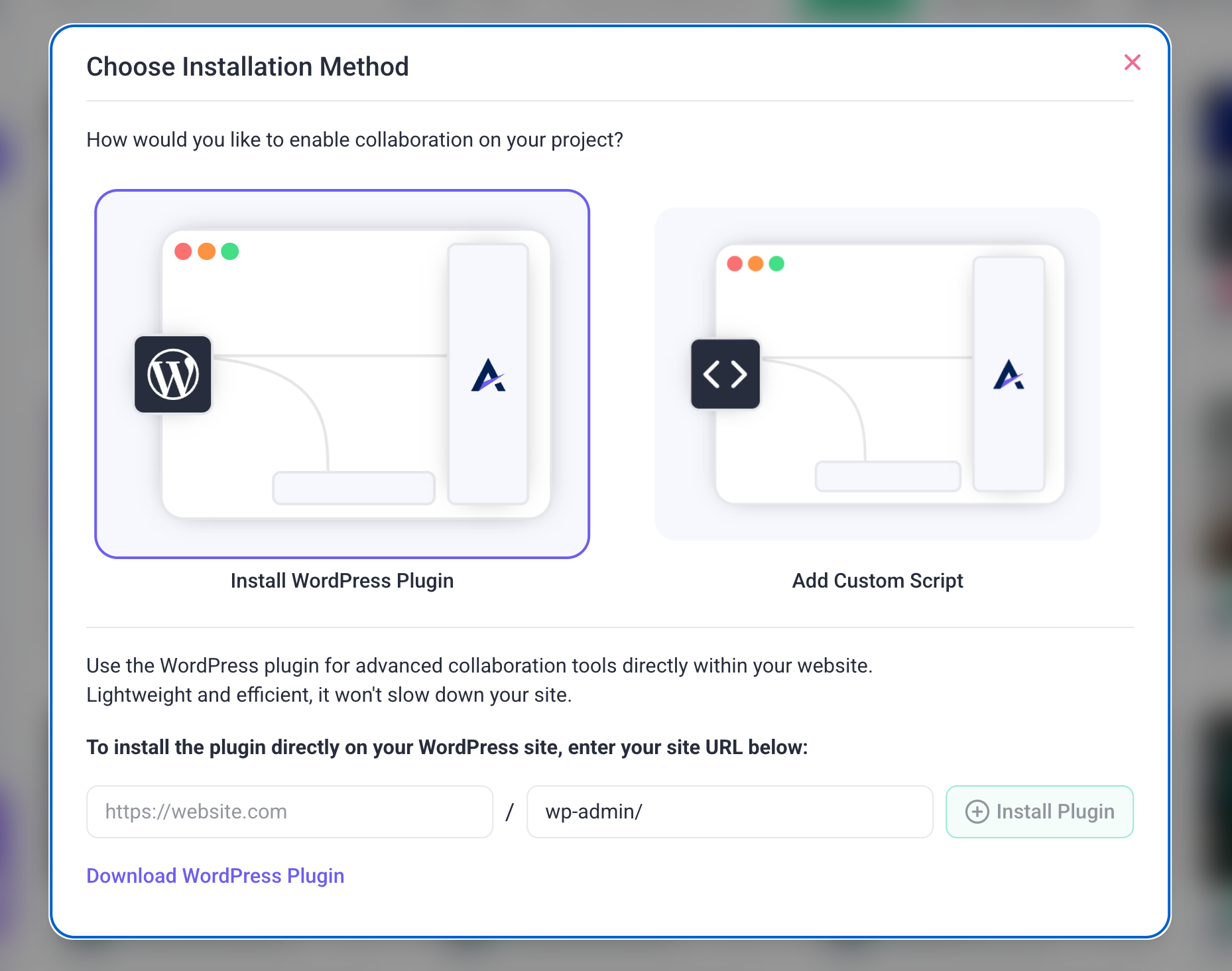
- Click Add Snippet and select Install WordPress Plugin.
- Enter your website URL in the provided field.
- Click Install Plugin to continue.
- You’ll be redirected to your site — make sure the admin URL is correct.
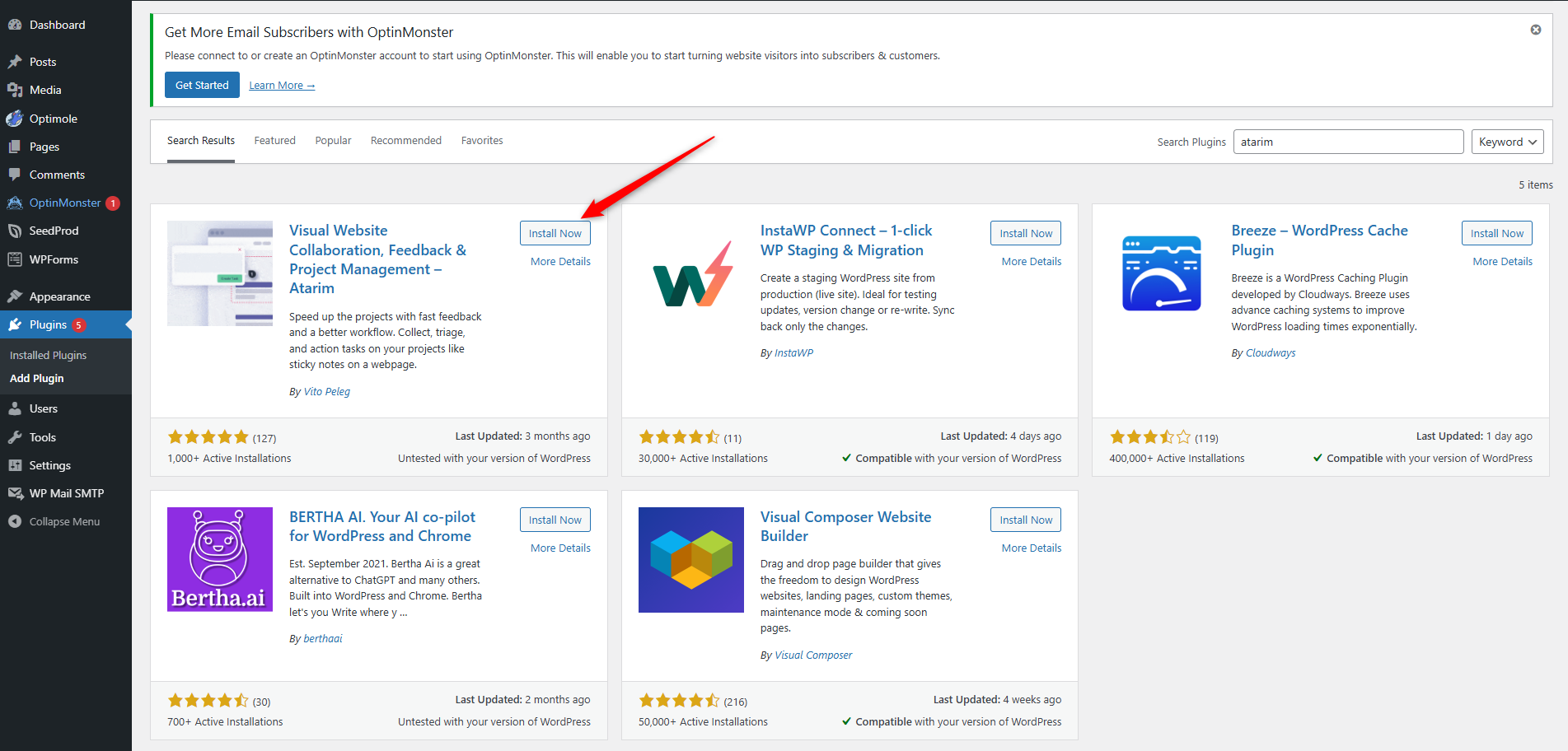
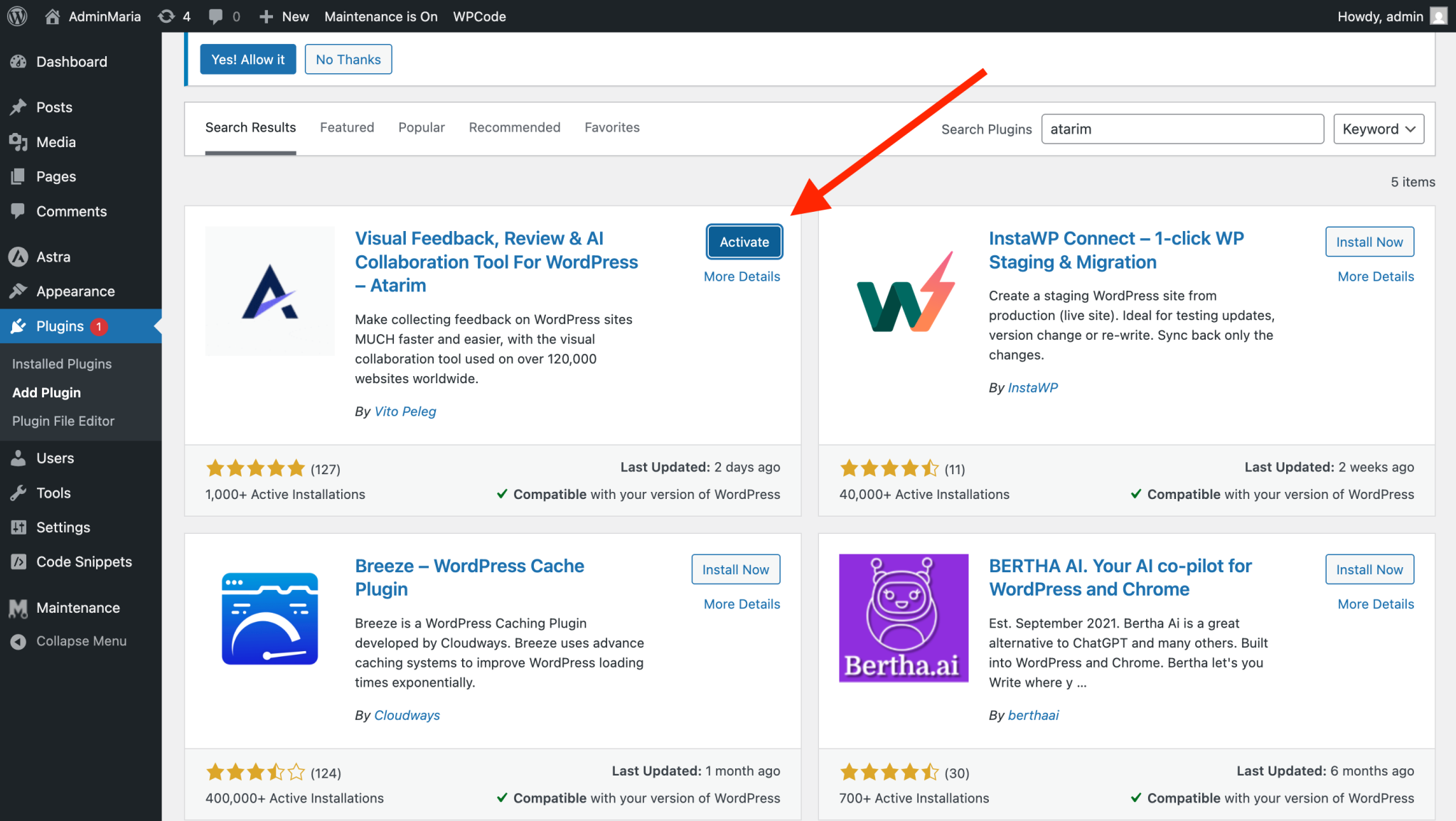
- Go to Plugins and look for Atarim.
- Click Install, then click Activate.
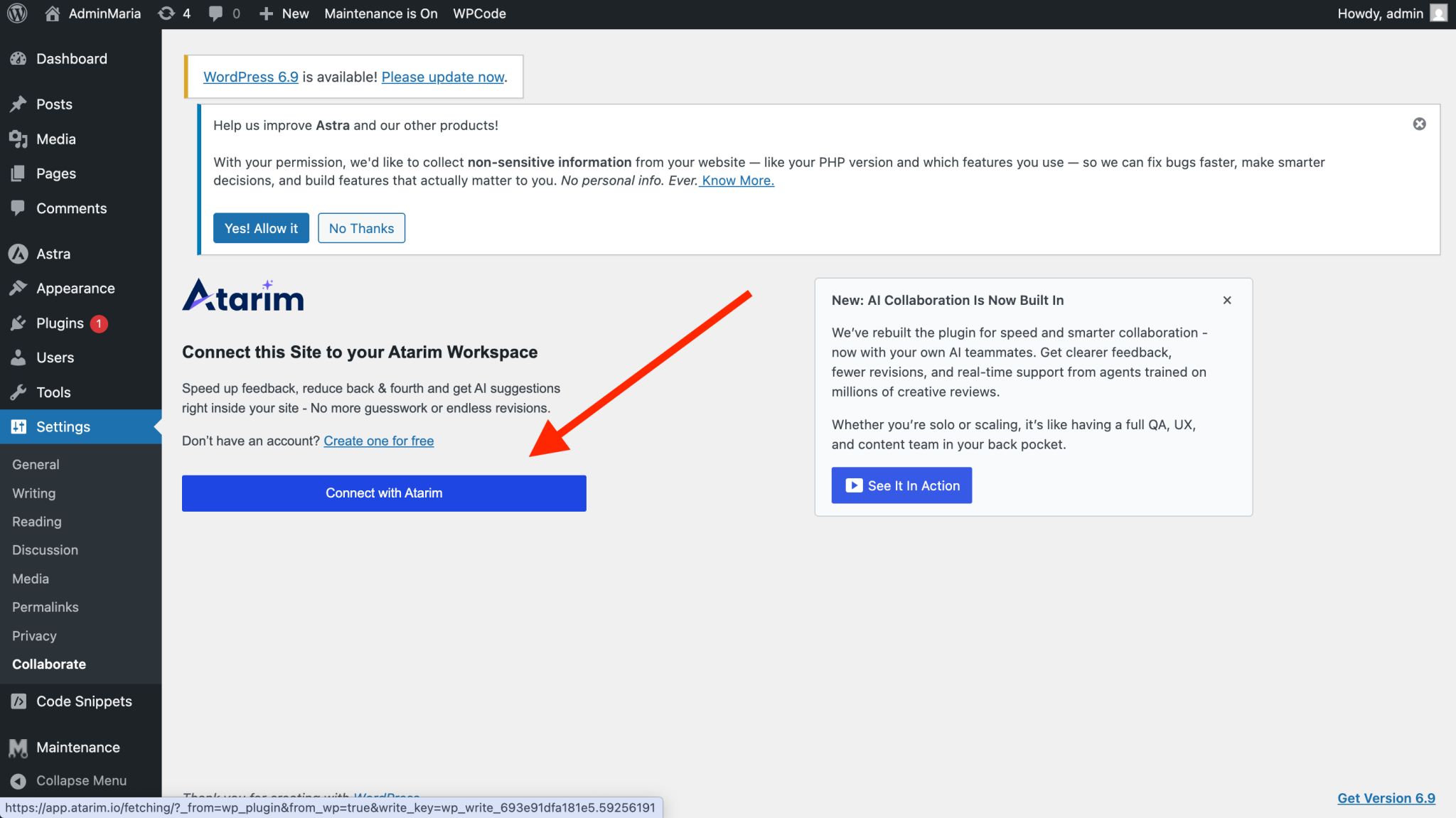
- Connect with your Atarim account, or create an account if you don’t have one yet.
- You’ll be directed to Atarim, where you can choose the workspace to activate this project in.
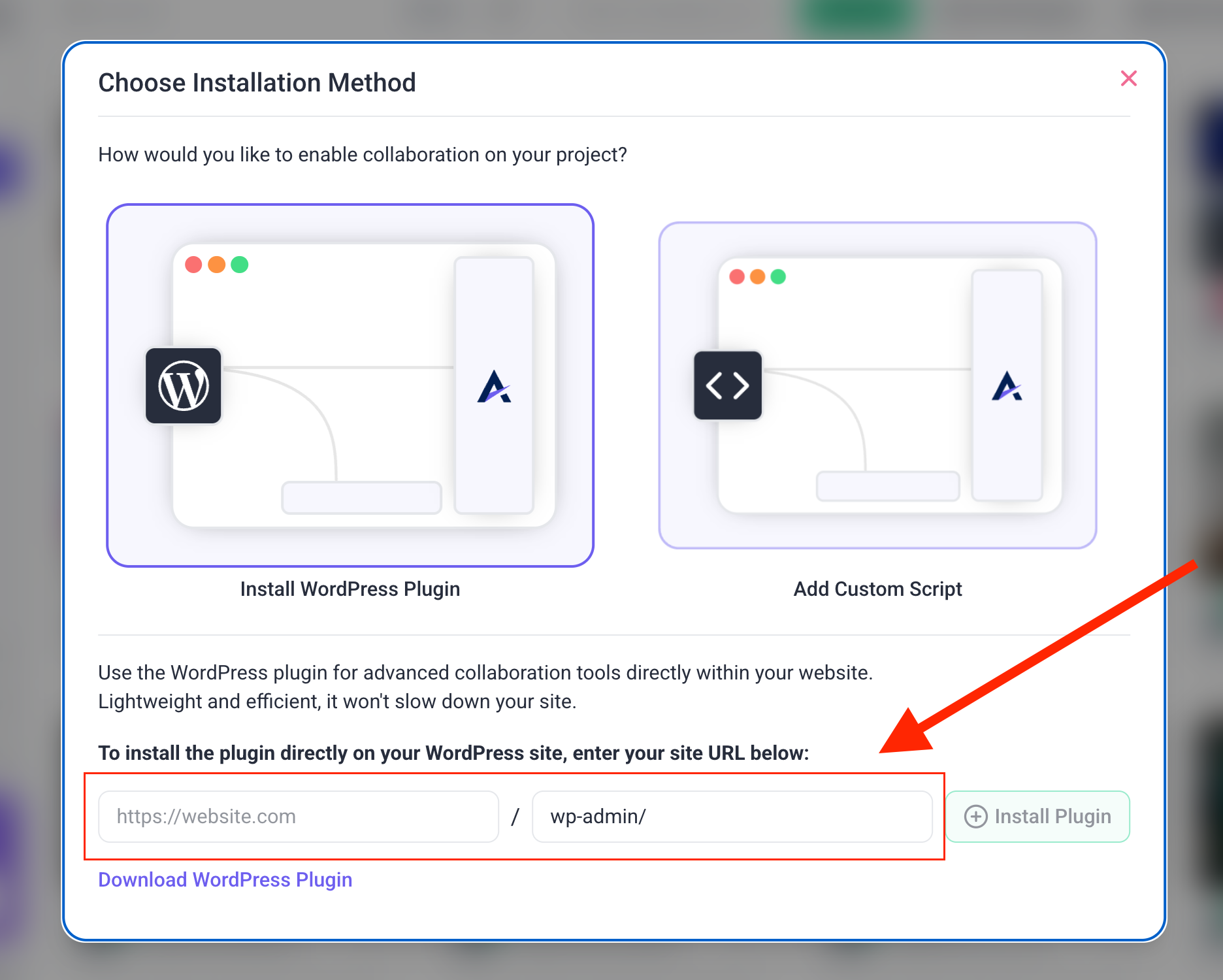
Warning: You’ll be redirected to your admin site after clicking Install Plugin. Verify the URL to ensure it’s correct.

Option 2: Install via Plugin Download (Manual Upload)
Install the Atarim plugin by downloading the latest plugin file and manually uploading it to your WordPress site. Learn More About The Plugin Settings.
Instructions:
- Log in to your Atarim workspace and navigate to Projects.
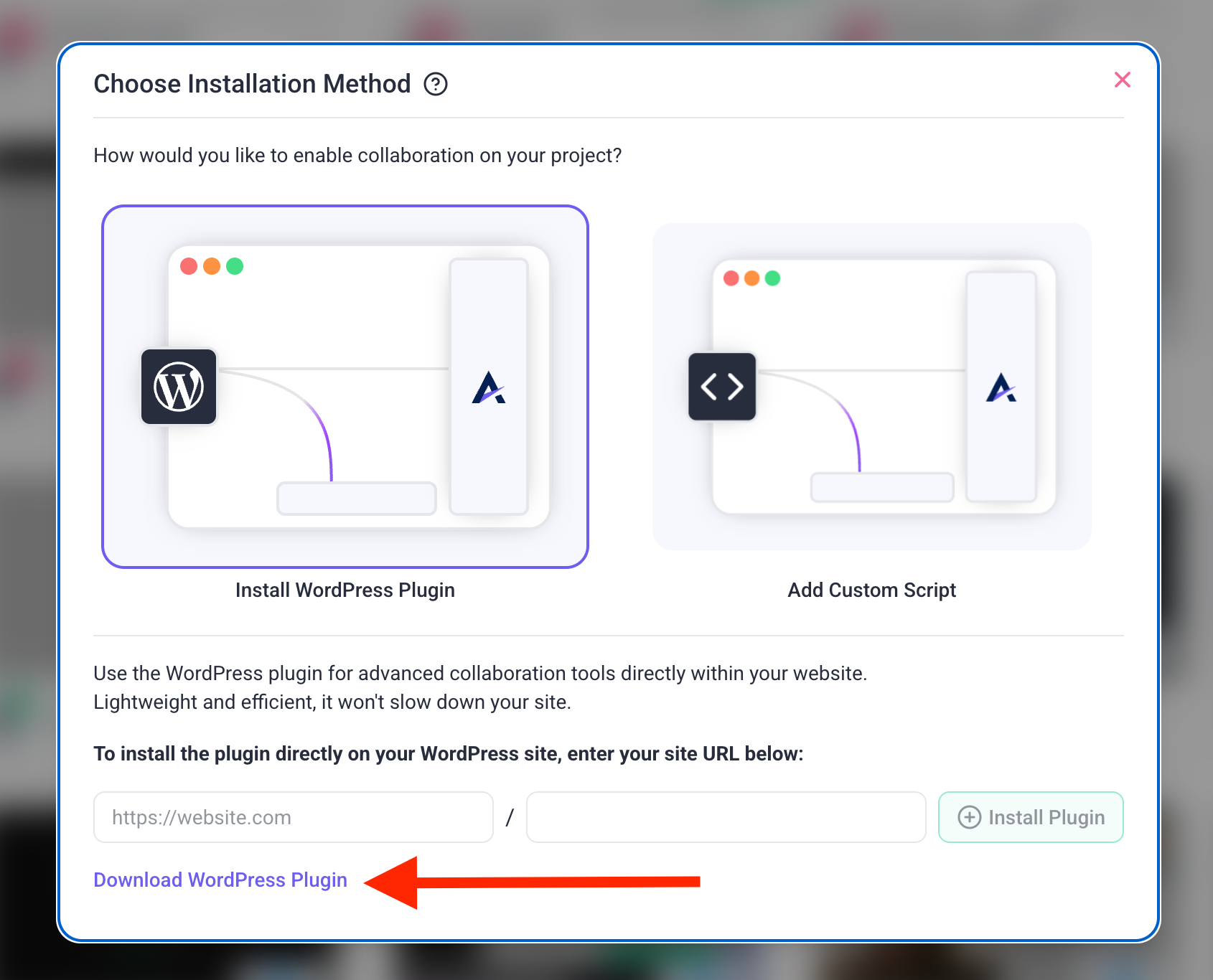
- Click Add Snippet and select Install WordPress Plugin.
- Click Download Plugin (WordPress Plugin) to download the latest version.
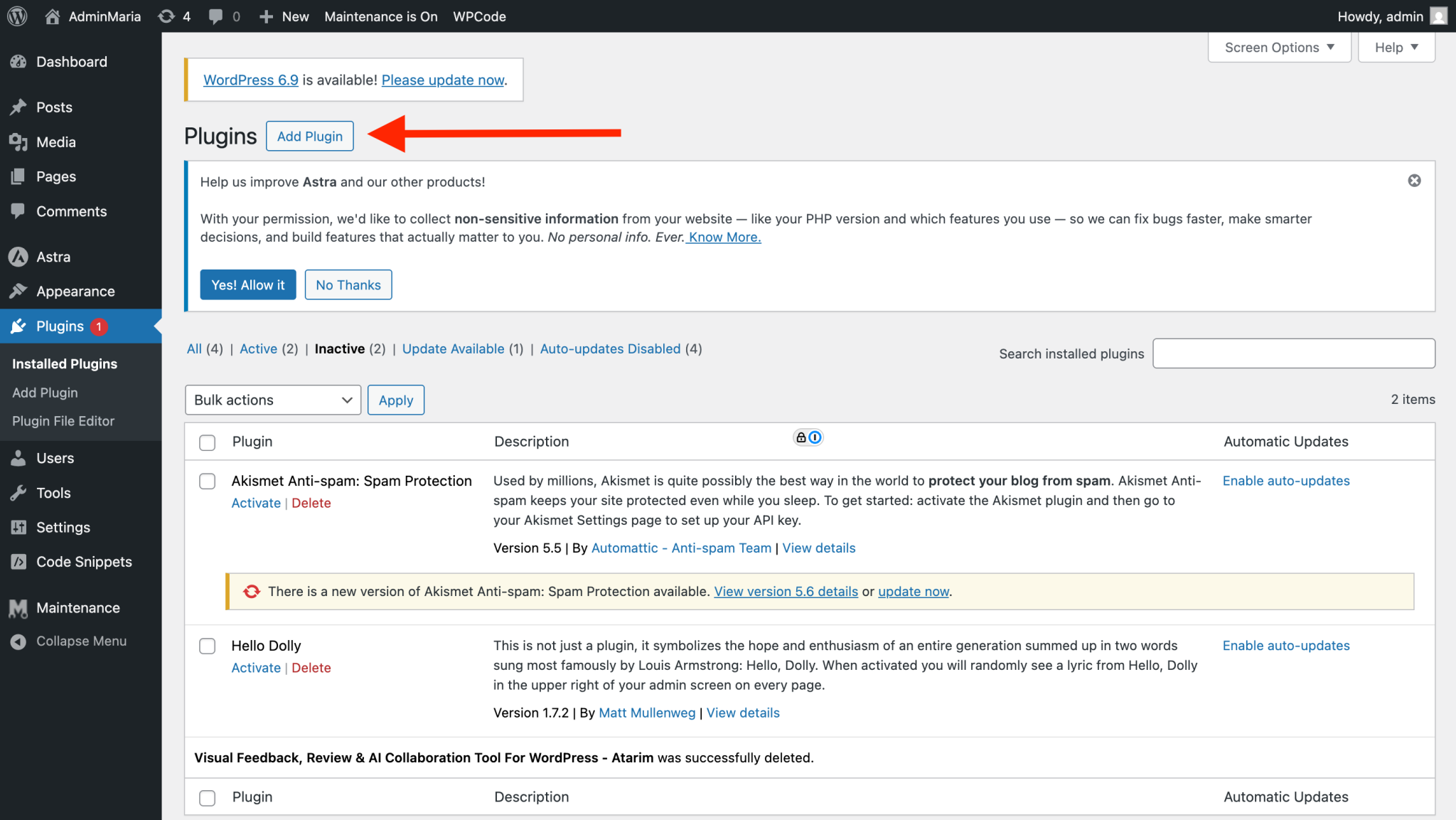
- Log in to your WordPress Dashboard and go to Plugins → Add New.
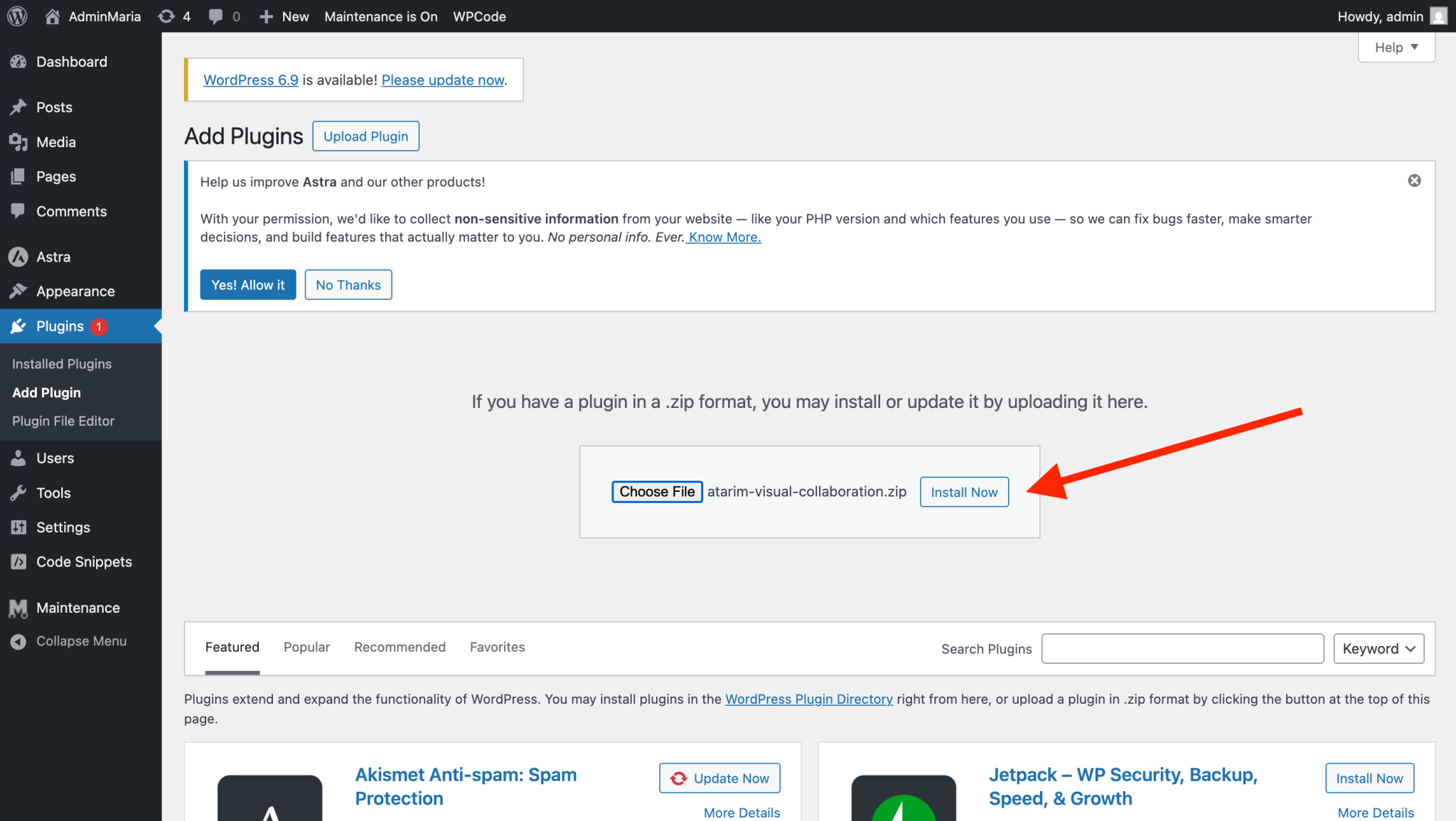
- Click Upload Plugin, select the downloaded .zip file, and click Install Now.
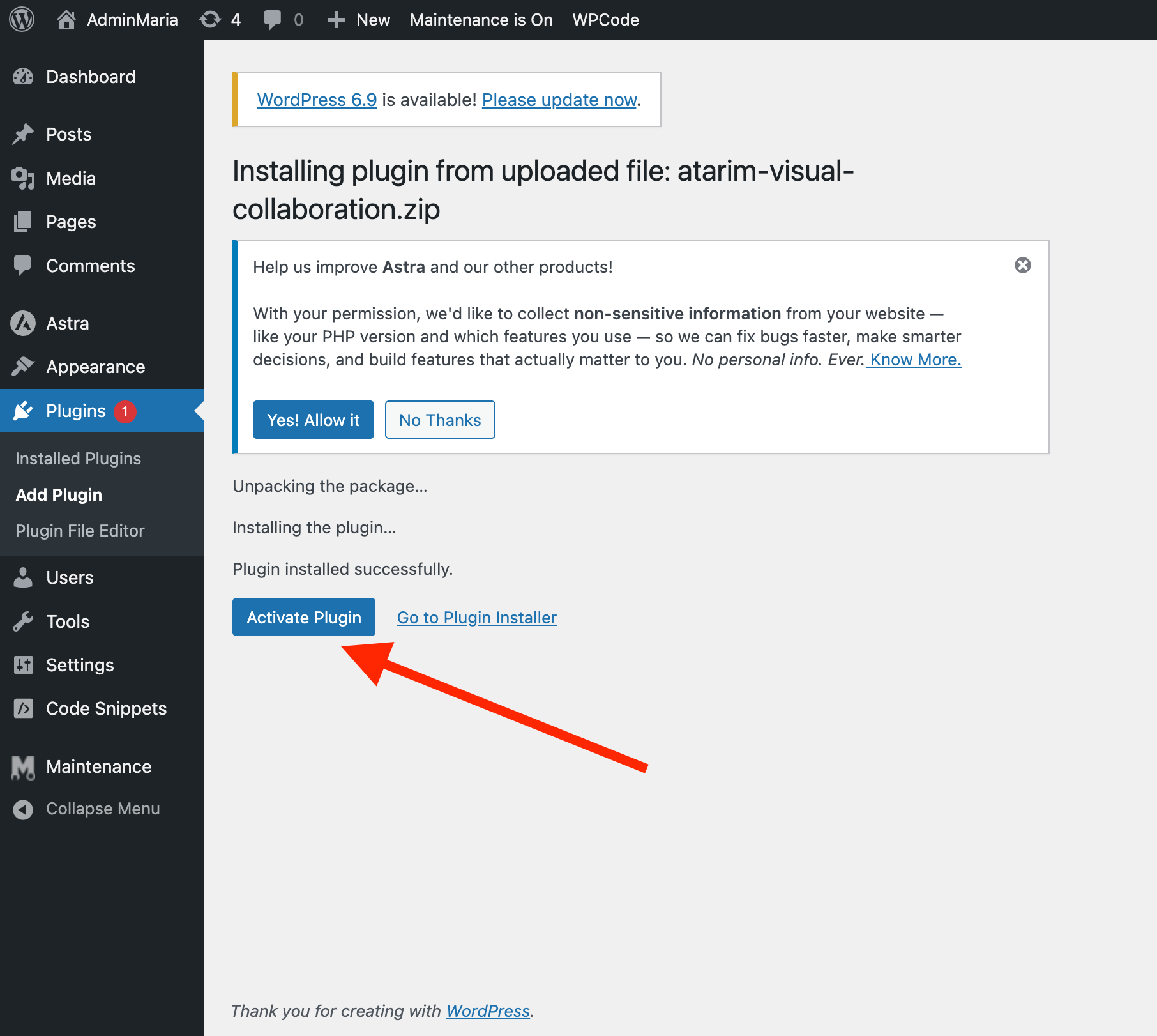
- Once installation is complete, click Activate Plugin.
- You’ll be redirected to the Atarim settings screen.
- Click Connect with Atarim and log in to your account (or create one if prompted).
- You’ll be redirected automatically to your Atarim dashboard. If not, refresh the settings page and click Connect with Atarim again.



Tip: Once you select the workspace where you want to add the project, you’ll be redirected back to your site with the plugin successfully added.
What You Get With the Plugin
- Works on secure, login-protected, or maintenance-mode pages
- Supports collaboration on WordPress admin (backend feedback)
- Allows AutoLogin from Atarim dashboard to WP admin
- Enables Guest Mode, letting clients leave comments without WP accounts
Recommendation: Use the plugin for all WordPress projects where accuracy, staging access, or backend feedback is required.
Custom Script
Tip: Best for non-WordPress websites such as Webflow, Shopify, Laravel, React, custom apps, and static sites.
When you choose Add Custom Script, Atarim generates a small JavaScript snippet that you can paste into your site’s code.
Instructions:
- Copy the script shown in the text box.
- Select Add Custom Script in the installation modal.
- Enter your site URL.
- Click Generate Script.
- Paste this code into the <head> or <footer> of every page where you want collaboration enabled.
- Publish your changes.
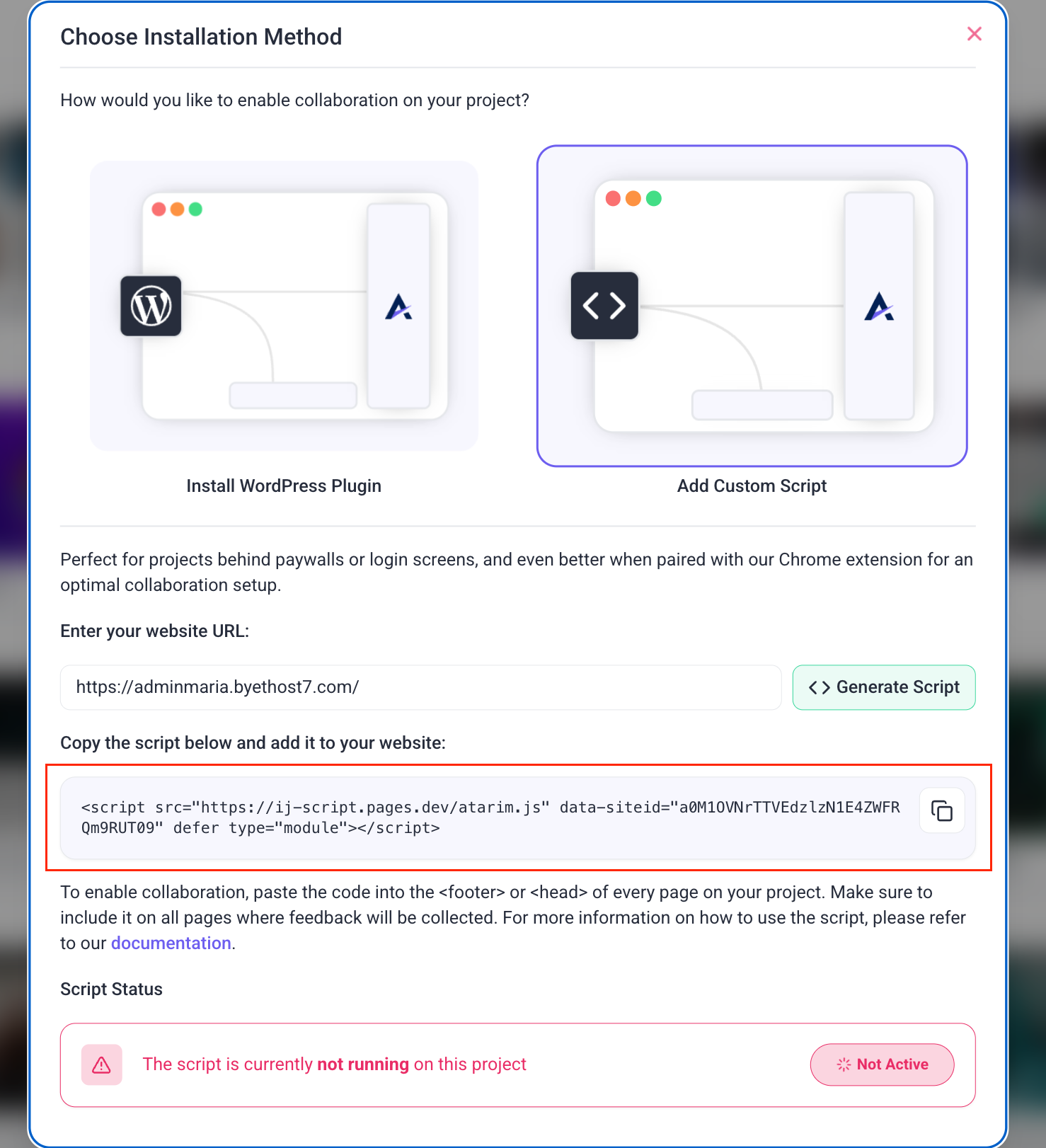
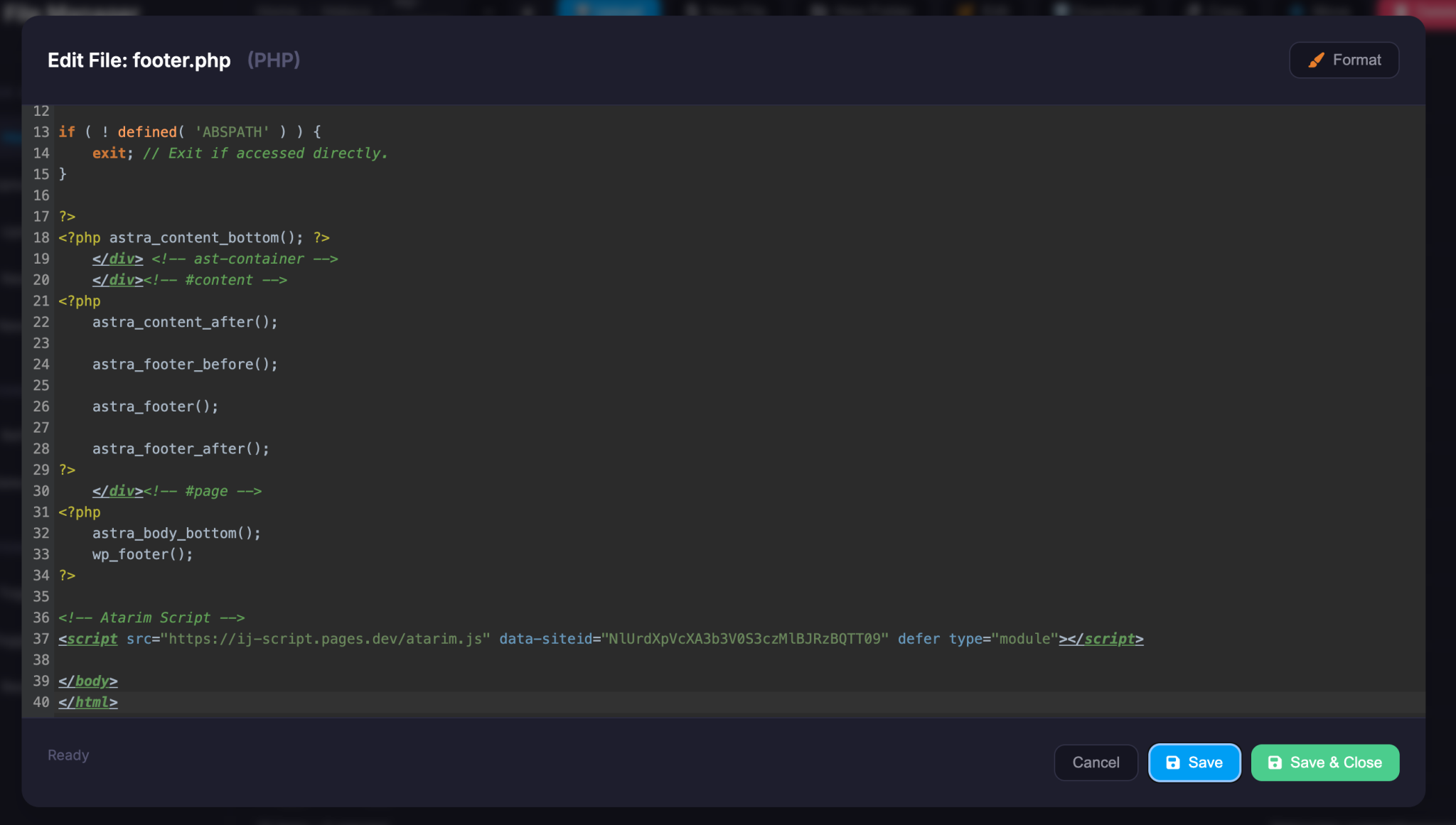
Script added in the footer
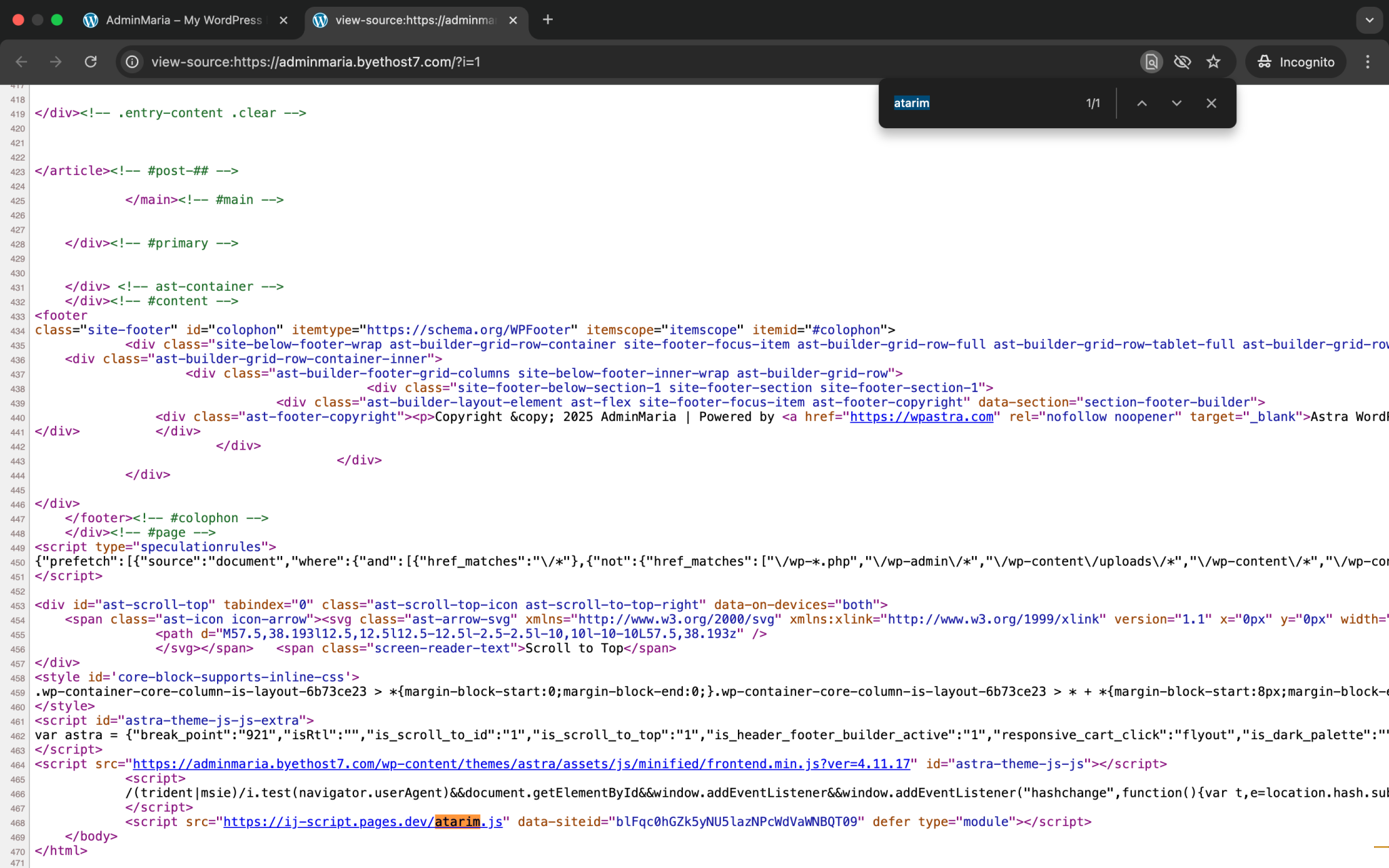
What You Get With the Script
- Works on any platform
- Loads Atarim on the actual live page, not a proxy
- Supports collaboration on login-required content only if the user is already logged in
Note: The script allows you to collaborate on secured areas of the website, ensuring comprehensive feedback across all site sections.
Method 4: Using the Chrome Extension
The Atarim Chrome Extension enhances your collaboration experience across all methods by allowing real-time feedback directly on any website.
Instructions:
- Install the Atarim Chrome Extension from the Chrome Web Store.
- Visit the website you want to collaborate on and click the Atarim extension icon.
- You can now add comments or collaborate directly on the site without needing to log into Atarim.
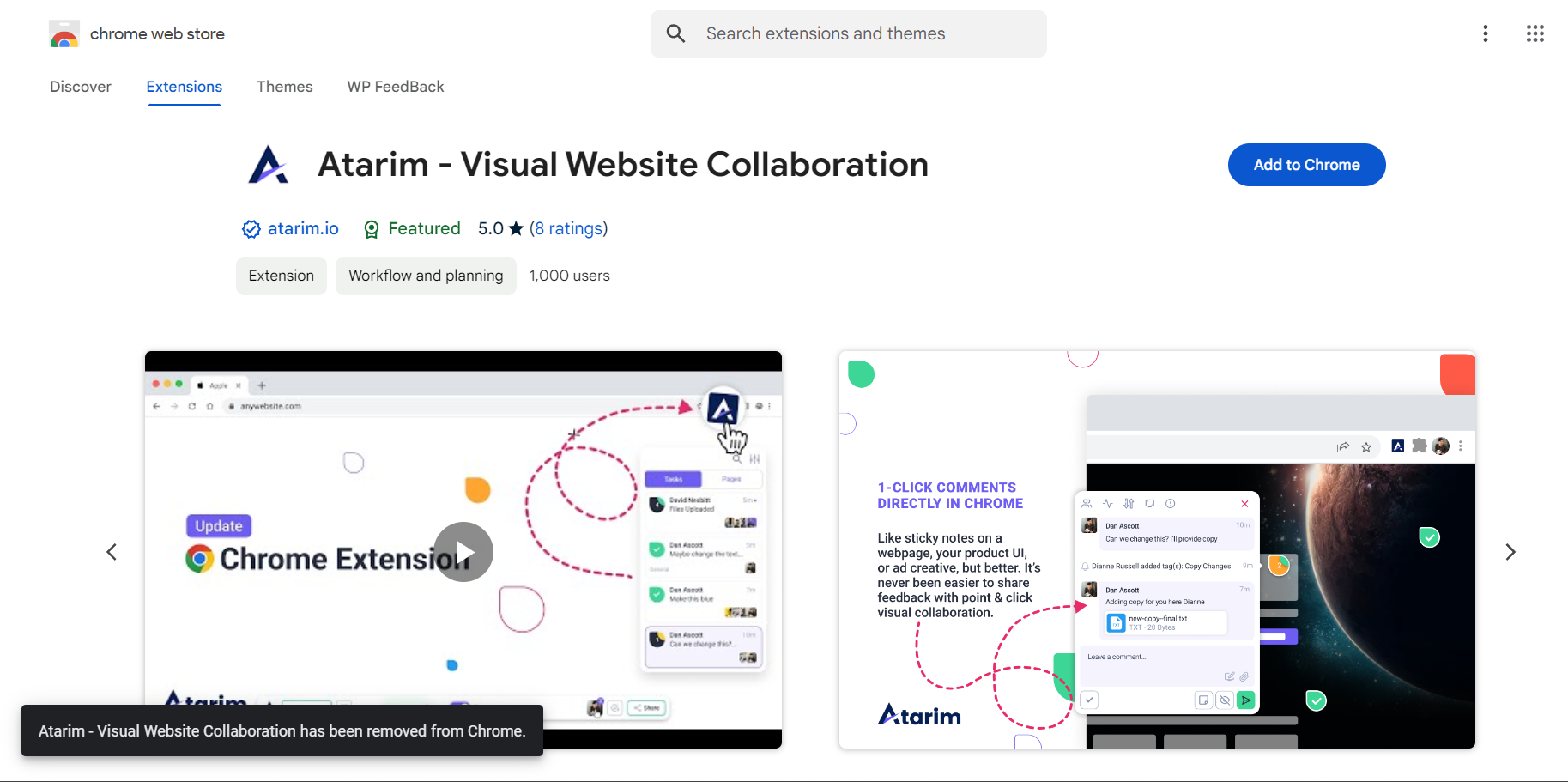
Note: For users who don’t have the Chrome extension installed and want to collaborate on the same project, collaboration will take place via URL-based access. This means tasks, pages, and comments will be mirrored 1-to-1 on the URL, ensuring consistency across the project.
Tip: Use the Chrome Extension when collaborating on pages that require authentication, load dynamic content, or block external requests. The extension attaches directly to your live browsing session, ensuring everything loads exactly as it should.
FAQs
Yes, you can add multiple URLs or upload various designs in separate projects.
You can share a link that allows clients to view and comment on the project without needing an account or anything installed on their side.